
Interface & feature overview
Welcome to the Poison AI Help Center. This guide helps you quickly understand the workspace layout and prepares you for your first image generation.
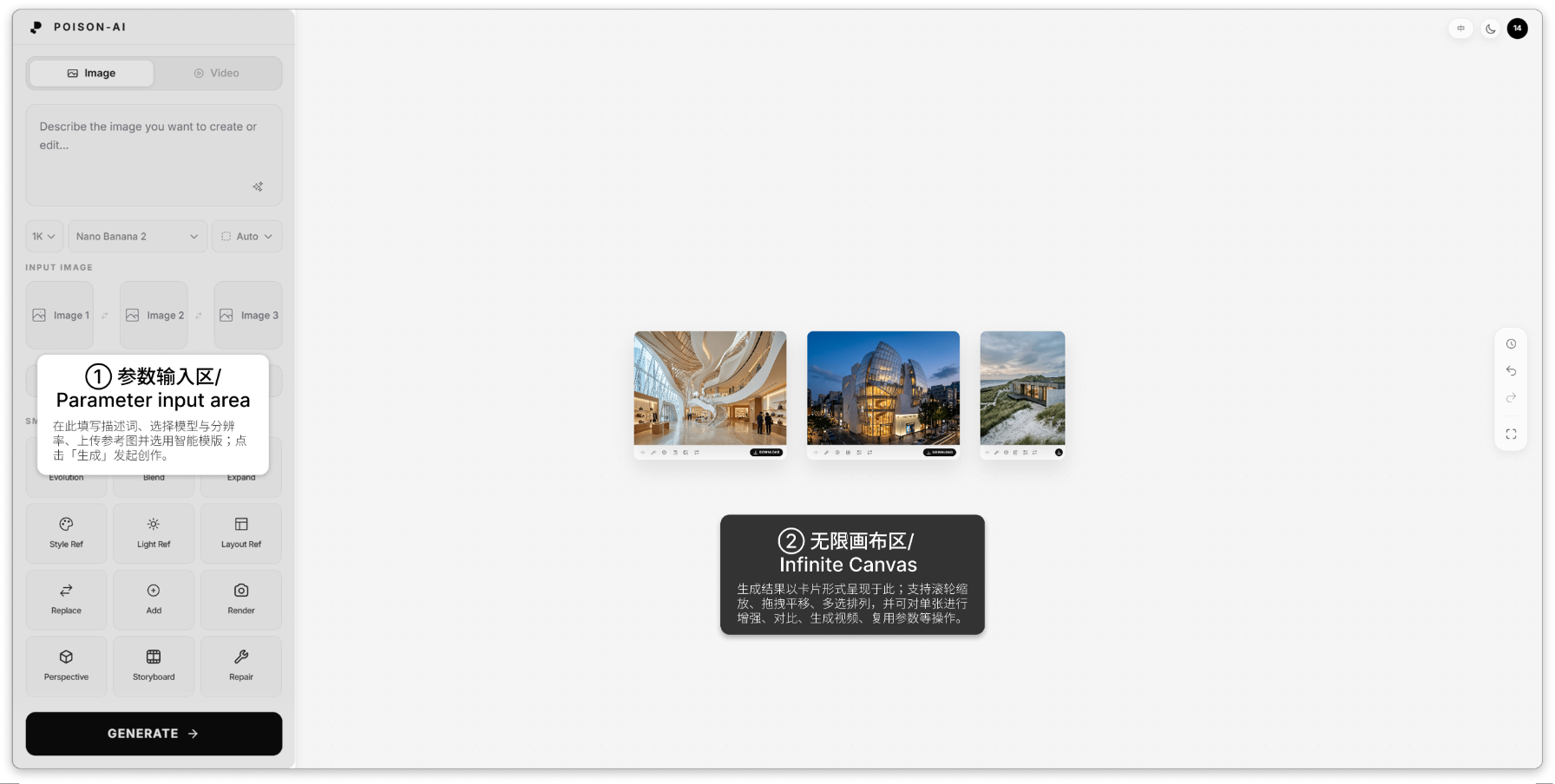
- ① Parameter & input area — Enter your prompt, choose model and resolution, upload reference images, and pick a Smart Template; click Generate to create.
- ② Infinite canvas — Results appear here as cards. You can zoom with the scroll wheel, pan by dragging, multi-select and arrange cards, and for each result use Enhance, Compare, Generate video, or reuse parameters.
The main interface has two areas: the left side is the parameter and input panel (prompt, model & resolution, reference image slots, Smart Templates, etc.), and the right side is the infinite canvas for viewing results, arranging multiple images, and taking further action. When generation finishes, results show on the right; you can zoom, pan, multi-select and arrange, or run Enhance, Compare, Generate video, or reuse parameters on any card.
Write your prompt, set your options on the left, and click Generate to see your first AI image on the canvas.