
History panel & restore parameters
The history entry is the History button at the top of the vertical toolbar on the right edge of the canvas. Click it to open the global history panel — the single place to view and reuse recent generations.
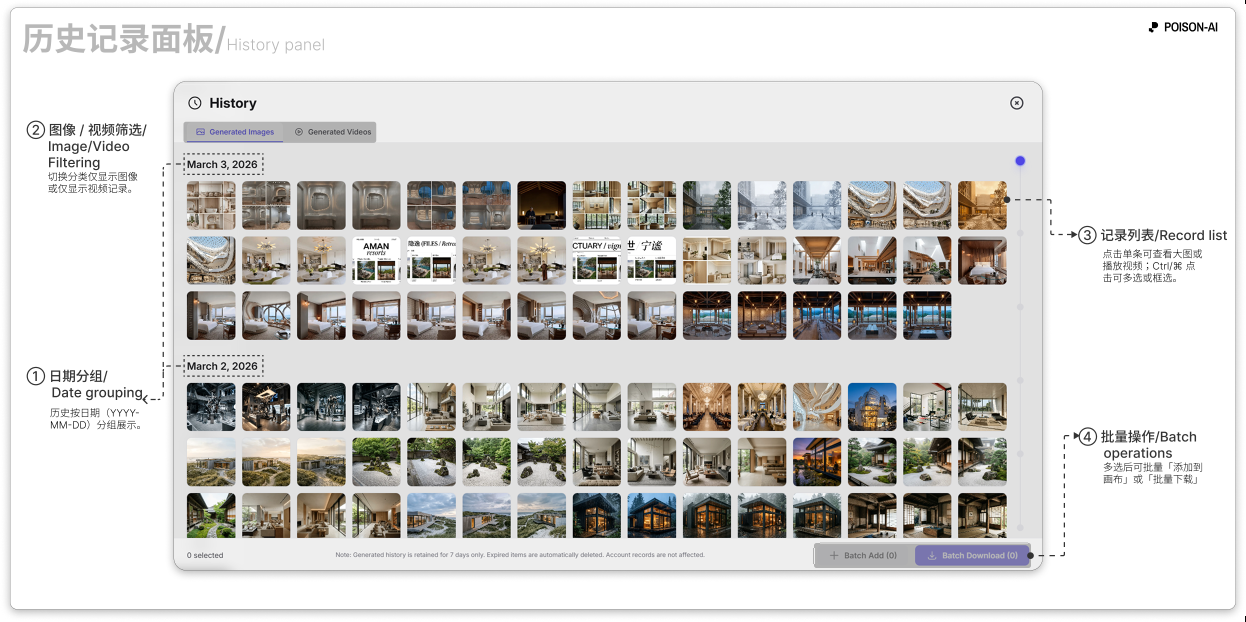
This doc covers how long history is kept and how to restore parameters to the canvas and left panel.
Opening and viewing the history panel
- Entry: 「历史记录」 (History) at the top of the right vertical toolbar; click to open the history panel.
- View: History is grouped by date (YYYY-MM-DD) and includes your recent images and videos. In the panel you can filter by Image / Video; click a row to view full size or play; multi-select (Ctrl/⌘ + click) to batch Add to canvas or Delete.
Retention
- In-app notice:
“History is kept for 7 days; after that it is automatically cleared (this does not affect your account or credits). Please download anything you need to keep.” - Items older than 7 days are removed; removal only affects what you see and can download, not your account or credit balance.
Restoring parameters
Add to canvas
- In the history panel, select one or more items and click 「添加到画布」 (Add to canvas).
- The result image(s) or video(s) are added to the current canvas as new result cards. If the item is a video, the app may switch to video mode to match.
- Once on the canvas, use Use all or Use output on that card to fill the left panel with the original input images, prompt, or output image and continue.
Use all / Use output
- These actions live on the result card’s action bar on the canvas, not in the history panel. After you add a history item to the canvas, use the card’s buttons:
- Use all: Fills the left input area and reference slots with that card’s input images and prompt.
- Use output: Fills only this result image into the left Image 1 slot.
- For history from Smart Templates, restoring shows the template name and parameters (e.g. evolution strength, storyboard grid); the full system-optimized prompt is not shown.
- These actions live on the result card’s action bar on the canvas, not in the history panel. After you add a history item to the canvas, use the card’s buttons:
Multi-select and delete
- Hold Ctrl (Windows) or ⌘ (Mac) and click multiple rows to select, then Add to canvas or Delete. Delete only removes them from history; it does not remove cards already on the canvas.
Summary
- Retention: History is kept for 7 days; after that it is cleared (account and credits are unchanged).
- Restore flow: In the history panel Add to canvas → on the canvas use Use all or Use output on the card to put the original input/prompt/output back into the left panel for editing or another generation.
If the product changes retention or the restore flow, follow the in-app UI.