
Result cards & parameter reuse
Each result has an action bar below it (or on the right for tall/narrow images). A single result (image or video) appears as a result card on the canvas with an action bar of common actions.
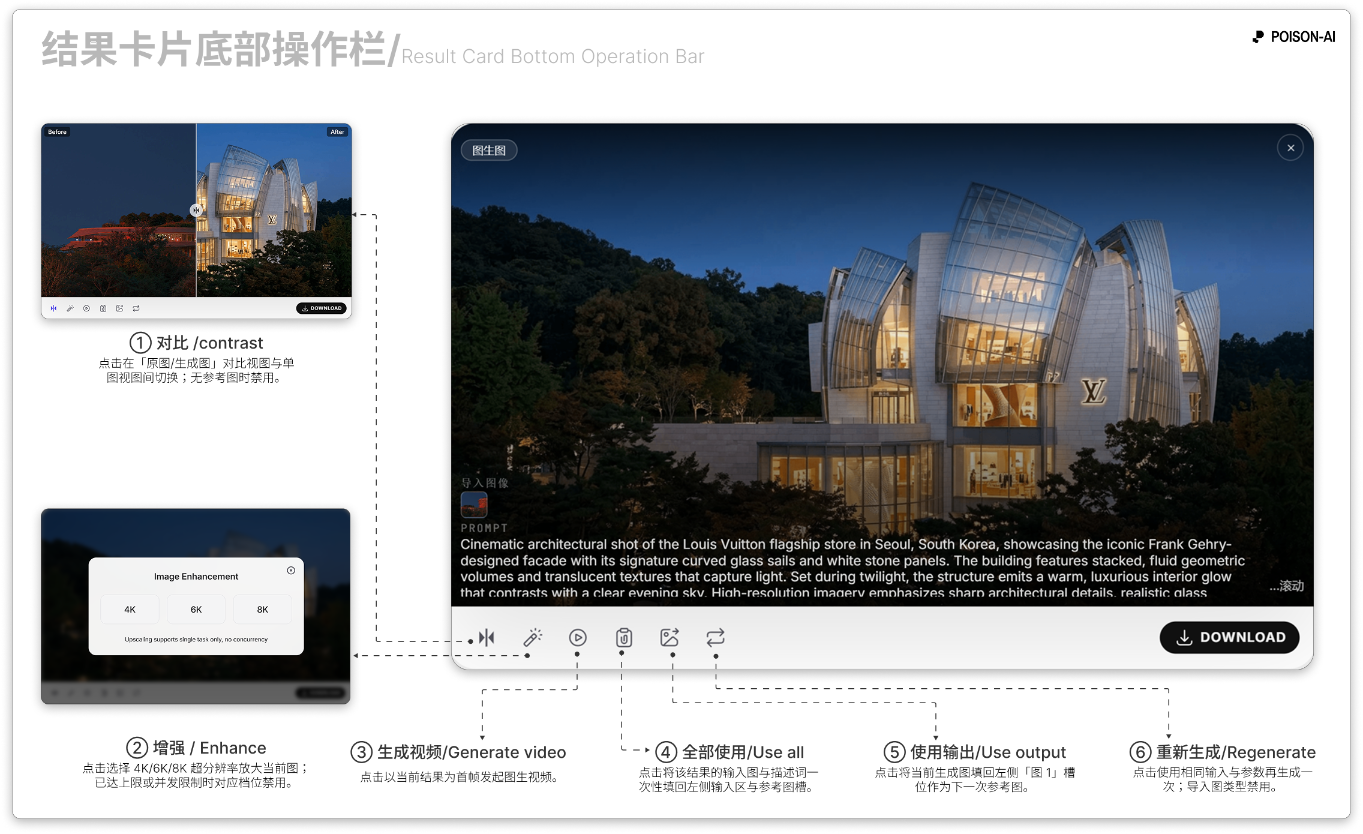
Action bar buttons (left to right)
Compare
- Switch between “original vs generated” view and single-image view.
- Disabled when the result has no reference image (e.g. not from image-to-image or a Smart Template).
- In compare mode the button is highlighted; label may show “Exit” or equivalent.
Enhance
- Opens the Enhance modal (4K / 6K / 8K upscale). Pick a tier to run.
- Disabled: When the result is already 8K, or when the image’s longest side already meets or exceeds the tier limit; that tier is then unavailable in the modal.
- In-app message: “Upscale supports a single task at a time.”
Generate video
- Uses this result image as the start frame and runs image-to-video. Available on any result card.
Use all
- Fills the left input area and reference slots with this result’s input images and prompt.
- Disabled when the card is imported (no original input to fill back).
Use output
- Fills only this result image into the left Image 1 slot as the next reference. No disable conditions.
Rerun
- Runs generation again with the same inputs and parameters.
- Disabled for imported cards.
Download
- Saves the result (image or video) locally. May show “Download” text + icon for landscape; icon only for portrait/square.
Close (remove from canvas)
- Location: X button on the top-left of the card on hover (not in the action bar).
- Action: Removes the card from the canvas; the same item remains in history.
Layout & responsive behavior
- Tall/narrow (e.g. 1:4, 1:8): Action bar is on the right of the card (vertical); six tools on top, download below.
- Landscape/normal: Action bar is along the bottom; layout can be default / narrow / compact by card width (same buttons, different size and whether “Download” text shows).
- Storyboard / Expand grid results: Each cell has an “Extract this cell” (or equivalent) button to pull that cell onto the canvas or download it.
Summary
| Button | Action | Disabled when |
|---|---|---|
| Compare | Toggle original vs result | No reference image |
| Enhance | 4K/6K/8K upscale | Already 8K or side over limit for that tier |
| Generate video | Image-to-video | — |
| Use all | Fill input + reference from this result | Imported card |
| Use output | Fill Image 1 with this result | — |
| Rerun | Same params, generate again | Imported card |
| Download | Save locally | — |
| Close | Remove from canvas (top-left X) | — |
If the product adds or removes buttons or conditions, follow the in-app UI.