
Super canvas
Use Super canvas when you need to combine multiple images and text into one (e.g. mood boards, report slides).
Entry: the Super canvas button in the left panel, below the reference image area and above Smart Templates.
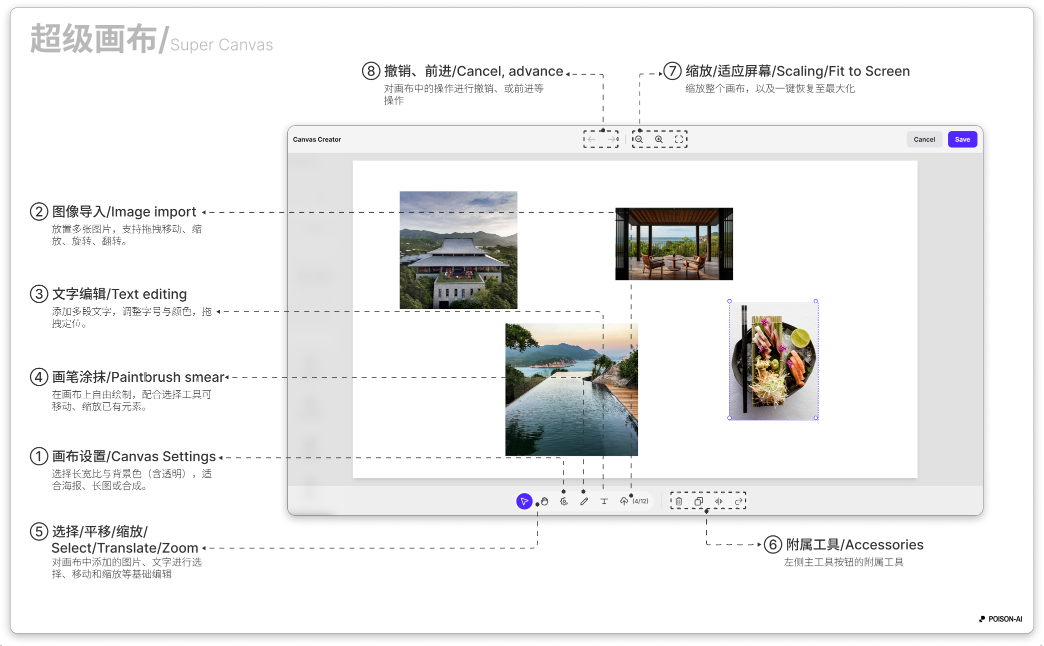
Overview:
- Canvas settings — Choose aspect ratio (e.g. 9:16, 16:9, 1:1) and background (including transparent) for posters, long images, or compositing.
- Images — Up to 12 images; up to 10 per upload, max 15MB each. Each image can be moved, scaled, rotated, or flipped horizontally.
- Text — Add multiple text blocks; set size and color, drag to position.
- Brush — Draw on the canvas; with the selection tool you can move and scale existing elements.
- Export — Export the whole canvas as one image. You can send it back to the left input slot for another generation or save it. When you reopen Super canvas, any saved state is restored so you can continue editing.
Tip: With an image or text block selected, press Delete or Backspace to remove it (does not trigger when focus is in a text input).