
Infinite canvas guide
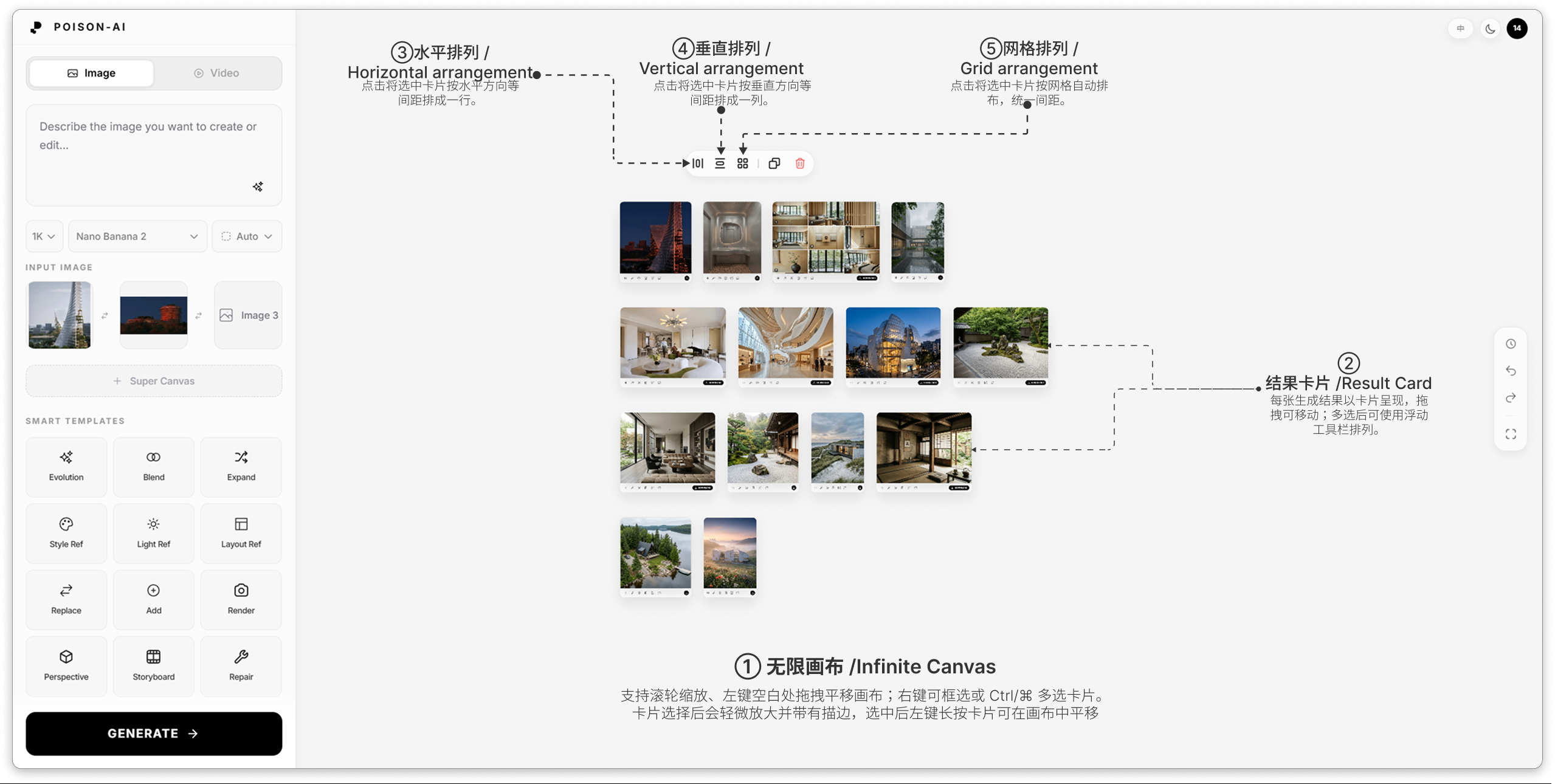

The canvas is infinite: you can place many results at once and move, zoom, and arrange the view freely.
Zoom
- In the result area, use the mouse wheel to zoom in or out; zoom is centered on the pointer.
- To see all results at once, click Fit to screen on the right toolbar; the canvas zooms and pans so everything fits in the window.
Pan
- Click and drag on empty canvas (not on a result card) with the left or middle mouse button to pan.
Move one or more results
- Drag a result card with the left or right mouse button to move it.
- To move several at once: marquee-select (drag a rectangle on empty space) or Ctrl / ⌘ + click to select multiple cards. A floating action bar appears; drag one of the selected cards and they all move together. Alignment guides help you line them up.
Arrange multiple results
- With multiple cards selected, the floating bar offers:
- Align horizontally — Even spacing in a row.
- Align vertically — Even spacing in a column.
- Grid — Arrange in a grid.
- Spacing is consistent for a clean layout.
Undo & redo
- If you moved or removed a card by mistake, use Undo and Redo on the right toolbar to restore the previous canvas state.